
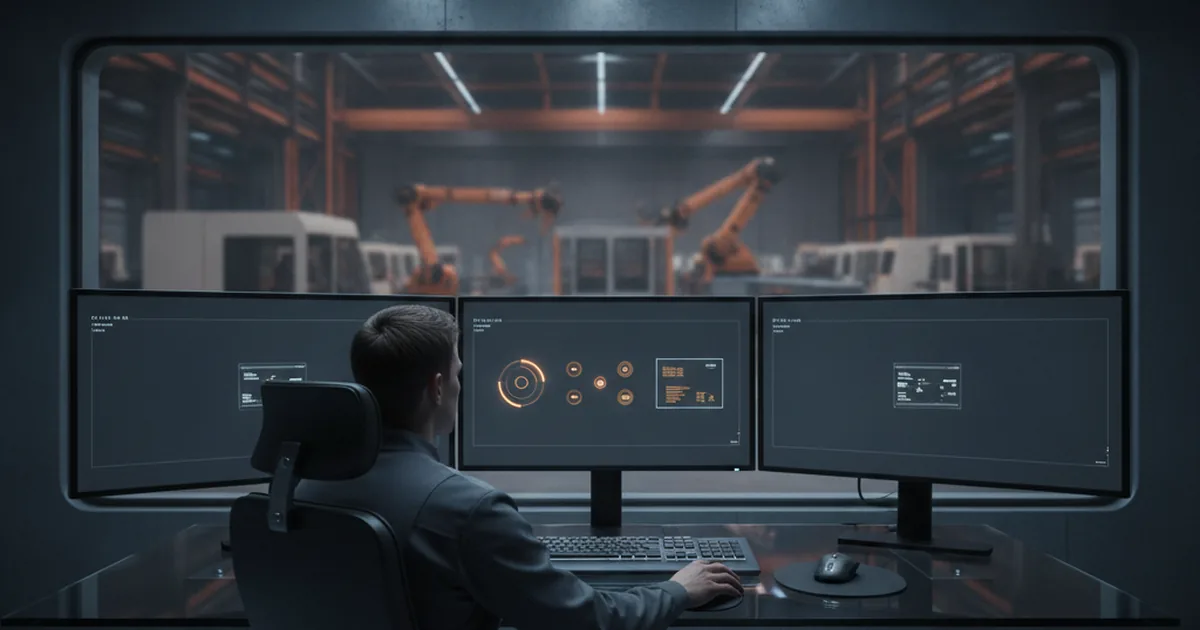
An HMI dashboard operators trust uses color only for deviations from normal, a shallow screen hierarchy (overview → area → equipment), values shown with trend and range instead of bare numbers, alarms that call for a specific action, and a layout tested against simulated upsets before go-live. Most plants reach this by rebuilding screen templates and alarm rules inside their existing SCADA package, not by replacing it.
An operator scanning a control-room screen has seconds, not minutes, to notice that something is drifting out of normal. A dashboard cluttered with bright colors on every tag, a deep menu tree, and numbers with no context turns that scan into guesswork — and guesswork during a developing upset is exactly where downtime and near-misses come from. Designing the screen itself, not just configuring the SCADA package behind it, is what closes that gap.
That distinction matters because HMI screen design is fundamentally an interface design problem, not a tag-mapping exercise. Getting the visual hierarchy, color rules, and alarm presentation right takes the same discipline a team that designs operator-facing interfaces like this one brings to any screen someone has to read quickly under pressure — the standards below are the plant-floor version of that same practice.
This guide walks through what makes an HMI screen trustworthy under ISA 101, the seven principles behind dashboards operators actually use instead of fighting, the color and alarm-rate rules that keep screens readable, and how legacy HMI compares to a standards-based redesign.
What Makes an HMI Screen Trustworthy to Operators?
ISA 101 frames good HMI design around situational awareness: an operator needs to read the current state of the process, predict where it's trending, and decide on an action — all from one glance at the screen, without hunting through sub-menus or decoding a wall of identically colored tags. A screen earns an operator's trust when it answers "is this normal?" almost instantly and only demands deeper attention when something genuinely isn't.
Screens that fail this test usually don't fail because the data is wrong — the data is almost always there. They fail because everything on the screen competes for attention equally, so the one reading that actually matters gets lost in the noise of forty others that don't.
The Seven Principles Behind a Dashboard Operators Don't Fight
These principles show up, in one form or another, across every credible ISA 101-aligned HMI guide. None of them require new hardware — they're redesign decisions applied to the screens a plant already has.
- Color reserved for deviations. The baseline screen is grey and low-contrast; amber, red, and other saturated colors appear only when a value leaves its normal band.
- A shallow screen hierarchy. Operators move from a plant-wide overview to an area view to equipment detail in two or three clicks, not through a sprawling, inconsistent menu tree.
- Values shown with context. A process value appears next to its trend line and normal operating range, not as a bare number that gives no sense of whether it's drifting.
- Consistent navigation across screens. The same button, icon, and layout convention means the same thing on every screen in the system, so operators don't have to relearn navigation unit by unit.
- Alarms that call for an action. Every alarm message states what's wrong and what response it expects, instead of just flagging that a tag crossed a limit.
- Designed for the worst hour, not the average one. The layout is built and color-coded around how it performs during a cascading upset, since that's precisely when a cluttered screen does the most damage.
- Tested against simulated data before go-live. New screens run through replayed historical upsets and stress scenarios with real operators before they ever touch live production.
Alarm Color Discipline That Operators Actually Follow
Color discipline only works if every screen in the plant applies the same rule set. A simple three-tier scheme, consistently enforced, does more for alarm response time than a wider palette that tries to encode more nuance than an operator can process at a glance.
| Color | Meaning | When to use it |
|---|---|---|
| Grey | Normal operation | Default state for every tag, vessel, and equipment icon on the screen |
| Amber | Warning / approaching limit | A value has left its normal band but hasn't crossed a safety or process limit yet |
| Red | Critical / action required | A tag has crossed a defined limit and needs an operator response, not just acknowledgment |
Reserving red exclusively for conditions that need action — not for anything merely unusual — keeps it rare enough that operators still react to it with urgency instead of alarm fatigue.
How Many Alarms Per Hour Is Too Many?
Industry guidance built on ISA 101/18.2 practice treats a sustained rate above roughly 150 alarms per hour as overload: well past the point where an operator can read, prioritize, and respond to each one as an individual decision. Below that threshold, alarms still function as a filtered signal pointing at what matters. Above it, they collapse into background noise that operators learn to acknowledge reflexively rather than evaluate — which defeats the entire purpose of an alarm system and is measurably more dangerous than having fewer, better-tuned alarms in the first place.
Getting the rate down usually means auditing which conditions actually need an alarm versus which ones were added "just in case" during initial commissioning, then rationalizing limits, deadbands, and priorities as a deliberate pass — not a one-time cleanup that drifts back up over the following year.
Legacy HMI vs a Standards-Based Redesign
The difference between a legacy screen set and an ISA 101-based redesign shows up most clearly side by side:
- Color use: legacy screens often paint every component a saturated color "to look complete"; a redesign reserves color for deviations only.
- Navigation: legacy systems accumulate inconsistent menu structures added screen by screen over years; a redesign enforces one navigation convention plant-wide.
- Alarm volume: legacy configurations tend to alarm on everything measurable; a redesign rationalizes alarms down to conditions that require a specific operator response.
- Values on screen: legacy displays frequently show bare numbers; a redesign pairs every value with trend and normal range.
- Validation: legacy screens are rarely retested once commissioned; a redesign gets walked through simulated upsets with real operators before go-live.
None of this requires ripping out the underlying SCADA platform — our SCADA and HMI modernization guide covers how to sequence an architecture-level upgrade if one is already on the roadmap, but screen-level redesign can usually happen on top of the existing system first.
Where This Fits Into a Factory Digitalization Project
HMI dashboard design is easy to treat as a SCADA configuration task handed to whoever is already touching the tag database. In practice it's closer to a UI/UX project that happens to run on industrial hardware: the inputs are process tags and alarm limits instead of app screens, but the discipline of reserving color for meaning, keeping navigation shallow, and testing under realistic stress is the same discipline that makes any interface usable under pressure. That's true whether the operator is standing at a fixed control-room panel or reading the same dashboard from a rugged tablet on the factory floor — the underlying screen design has to hold up either way.
FAQ
- What is ISA 101 and why does it matter for HMI design?
- ISA 101 is the industry standard for human-machine interface design in process automation. It defines how screens should support situational awareness — helping an operator read current state, predict where a trend is heading, and act in time — rather than just displaying every available data point. Plants that follow it tend to have fewer missed abnormal conditions and faster operator response times than those running ad-hoc, vendor-default screen layouts.
- Why should an HMI screen be mostly grey?
- A grey, low-saturation background means color only appears when something needs attention. If every valve, pump, and setpoint is already painted bright green or blue "to look good," an amber warning or red alarm has to compete with dozens of other colors for the operator's eye. Reserving color for deviations from normal is the single change that most improves how fast operators notice a developing problem.
- How many alarms per hour is too many for one operator?
- Industry guidance built on ISA 101/18.2 practice treats a sustained rate above roughly 150 alarms per hour as overload — well past the point where an operator can read, prioritize, and act on each one individually. In that state, alarms stop functioning as a decision-support tool and start functioning as noise the operator learns to tune out, which is more dangerous than having no alarm at all.
- Do I need to redesign the whole HMI at once?
- No. Most plants redesign one unit or production line first, validate it against simulated and historical process data, and only then extend the same template and color rules plant-wide. A phased rollout catches mapping errors and alarm miscounts on a small blast radius instead of discovering them during a live upset across the whole site.
- Can a legacy SCADA package support ISA 101-style screens?
- In most cases yes — ISA 101 is a design philosophy, not a software requirement, so it can usually be applied inside an existing SCADA package by rebuilding the screen templates, color rules, and navigation tree rather than replacing the underlying platform. A full platform migration is only necessary when the legacy tooling itself can't support the layering or scripting the new screens need.
- Who should design an HMI dashboard — engineering or a UX specialist?
- Both, working together. Process and controls engineers know what the screen needs to show and which conditions are actually critical; interface design experience is what turns that list of data points into a layout operators can scan in seconds under stress. Plants that treat HMI design purely as a SCADA configuration task, without UI/UX input, tend to end up with technically correct screens that are still hard to read fast.
- How should a new HMI design be tested before going live?
- Against simulated or replayed historical process data that includes abnormal conditions, not just steady-state operation. Walking operators through the new screens during a simulated upset — a trip, a runaway trend, a cascading alarm burst — surfaces layout and color problems that never show up when everything on the test bench is sitting quietly at setpoint.
Planning an HMI dashboard redesign and need interface design expertise? Discuss UI/UX Design →